How do I review my selection and page count before saving?
The panel on the right shows every message you have selected, in order, so you can double check before creating the book.
- 1
"Selected messages" shows your total count, and "Page count" shows a live estimate of the printed pages.
- 2
Click any message in the panel to scroll it into view in the full conversation.
- 3
Remove a message from the selection by clicking the X next to it, or use "Clear all" to start over.
- 4
When you are happy, click "Save" to create your book project and open it in the editor.
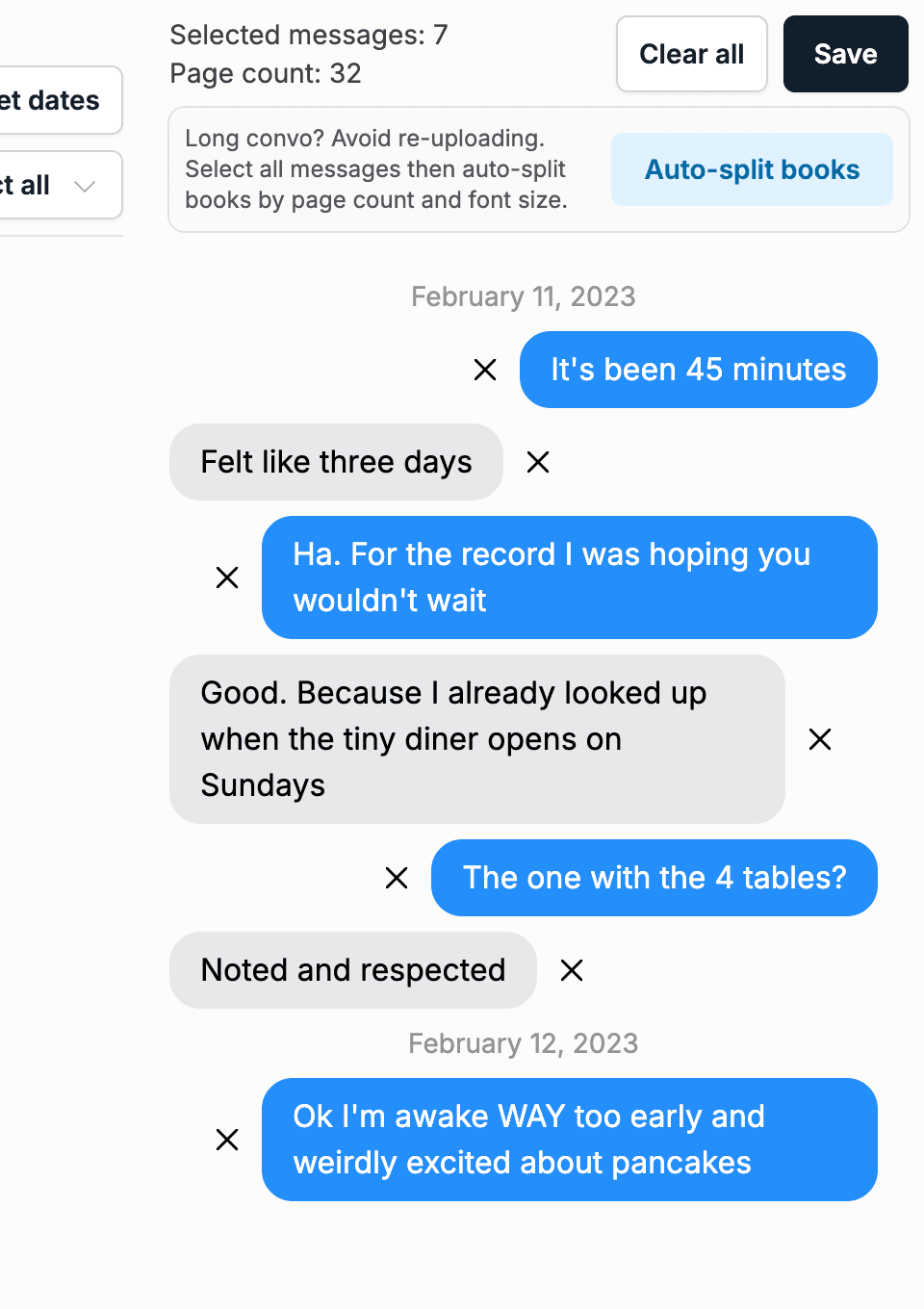
Note: Books can have a maximum of 800 pages. If your selection goes over, trim it down or use the auto split feature to turn one long conversation into multiple volumes.