How do I add a message?
- 1
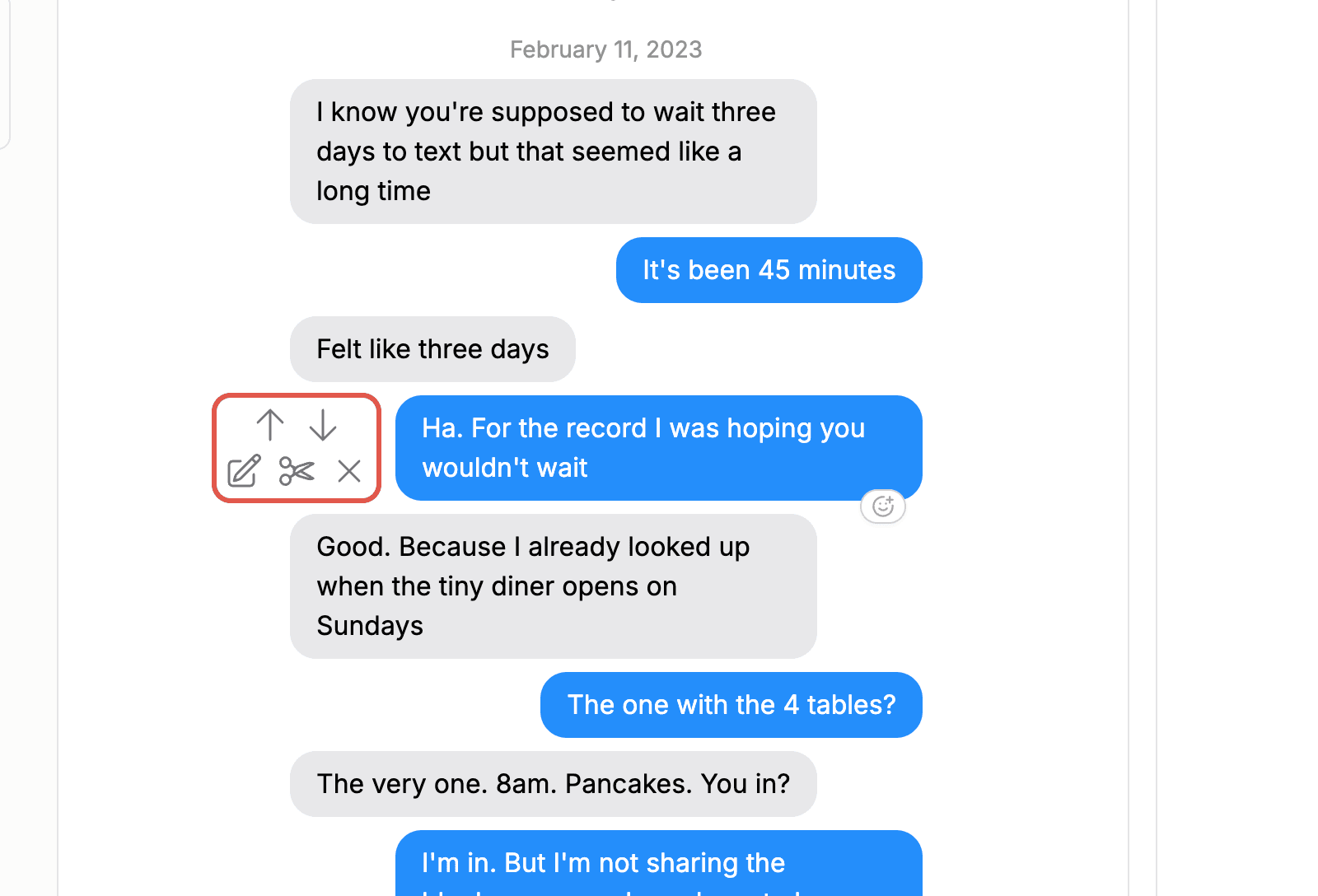
Hover over the message closest to where you want the new one. A small toolbar appears.
- 2
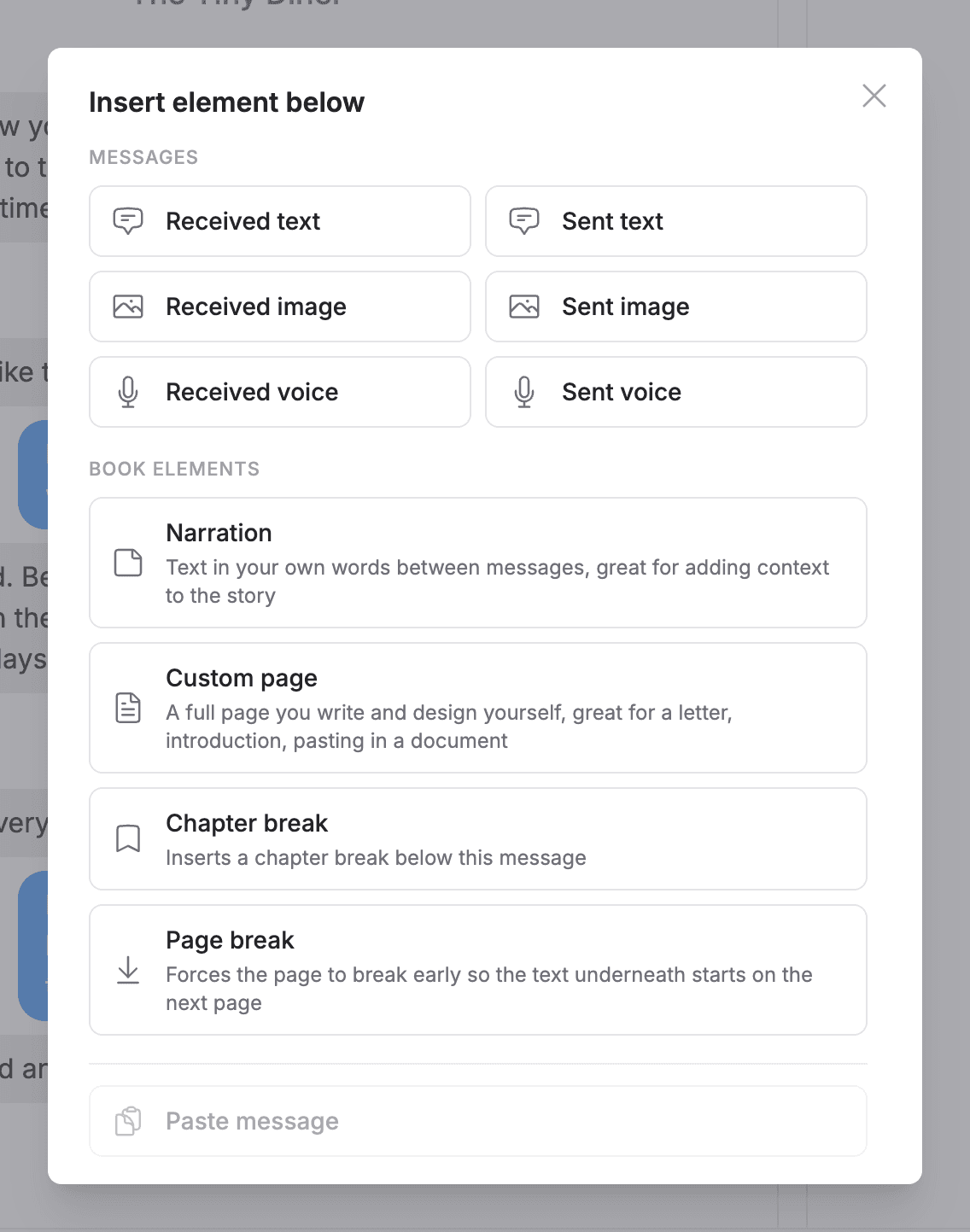
Click "Insert element above" or "Insert element below".
- 3
Under "Messages", choose the type: "Received text", "Sent text", "Received image", "Sent image", "Received voice", or "Sent voice". For received messages in a group chat, we ask which contact sent it.
- 4
For a text message, type your content and click the checkmark to confirm. For an image, pick the photo from your computer.
You can also use the "Add new message" button at the top of the editor to add a message on any date you choose.
Note: If "Sent text" is grayed out, the chapter has no primary sender yet. Open the "Contacts" section and pick who counts as you for that chapter.