How do I add my own text and photos to the cover?
- 1
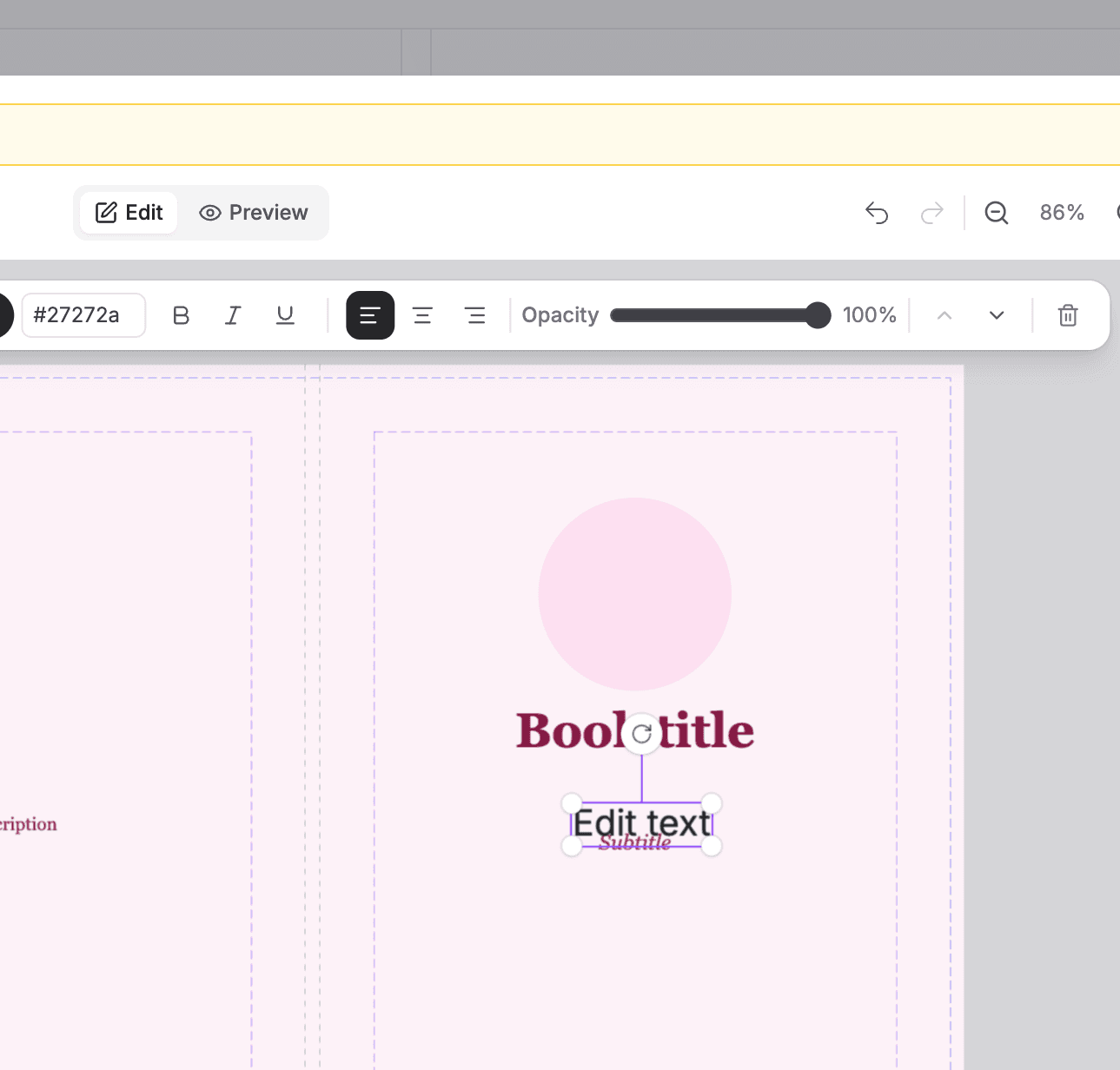
Open the "Elements" tab and click "Text", "Image", "Rectangle", or "Circle" to add one to the canvas.
- 2
For images, pick a photo from your computer. High resolution photos print best.
- 3
Drag to position, and use the corner handles to resize.
- 4
With an element selected, the inspector shows its controls: fonts, bold and italic, alignment, fill and stroke colors, corner rounding, opacity, and image fit.
- 5
Use "Bring forward" and "Send backward", or the "Layers" tab, to control what sits on top.
Note: Anything can go on the back cover too. The canvas shows back, spine, and front together, so just drag elements where you want them.