How does the cover designer work?
Open the cover designer with "Add cover" or "Edit cover" at the top of the editor. Unlike most book companies, nothing here is locked to a preset. Every piece of text and every image can be moved, resized, and restyled.
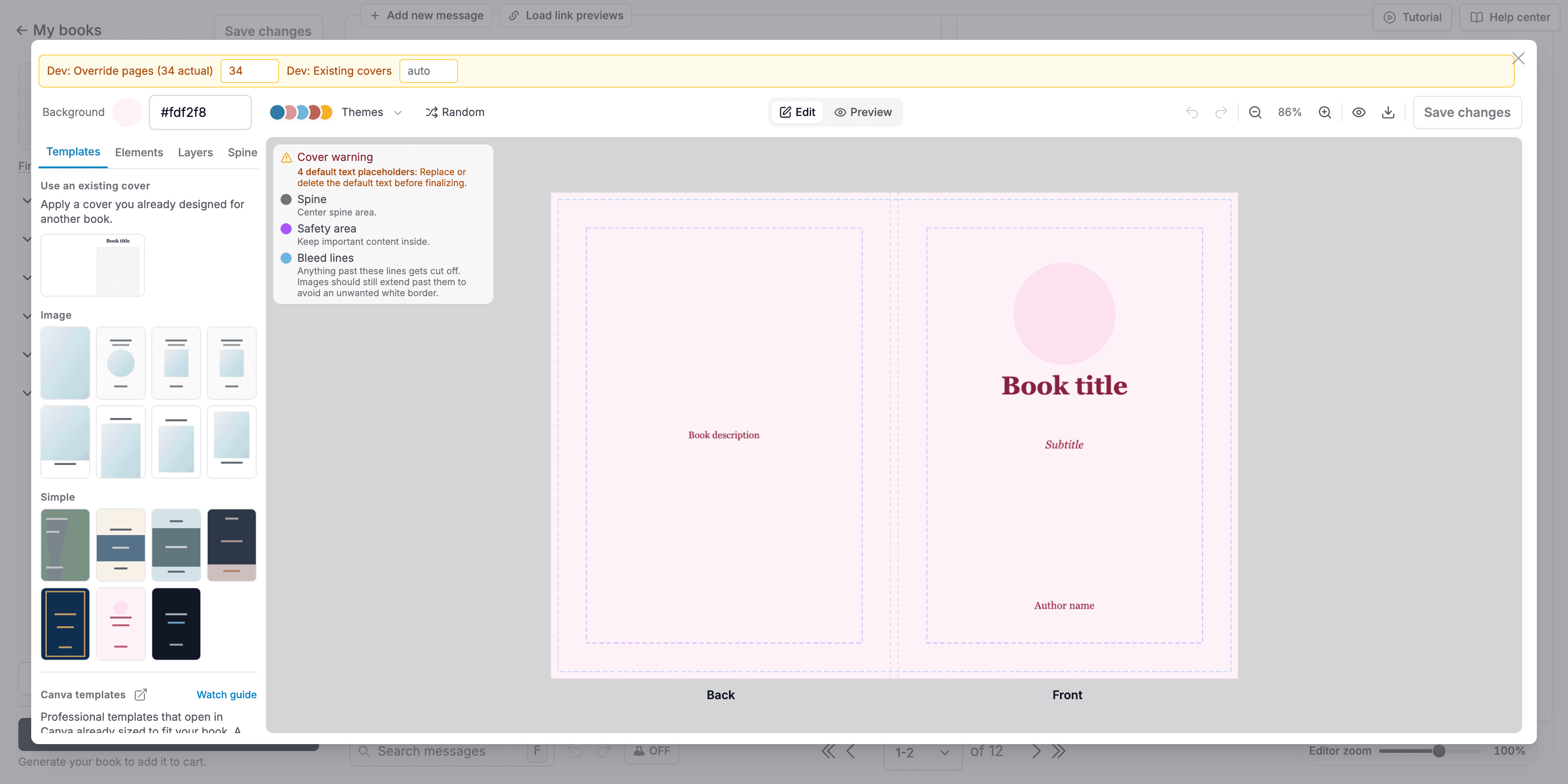
- 1
The sidebar has four tabs. "Templates" applies a ready made design, "Elements" adds text and images, "Layers" manages stacking, and "Spine" styles the spine text.
- 2
The canvas shows your full cover: back on the left, spine in the middle, front on the right. Drag anything to move it.
- 3
The toolbar on top sets the background color and theme, switches between edit and preview modes, and previews your cover as Paperback, Hardcover, or Linen.
- 4
Undo and redo live in the toolbar too, along with zoom and a guide toggle.
- 5
Click "Save changes" when you are happy.
Tip: Use "Download PDF to check quality for printing" in the toolbar to see exactly what the printer receives.