How do I change the date or time of a message?
Photos and voice messages sometimes import with the wrong moment, especially ones saved from other apps. You can move them to the right spot.
- 1
Hover over the photo or voice message and click "Change date and time" (the clock) in the toolbar.
- 2
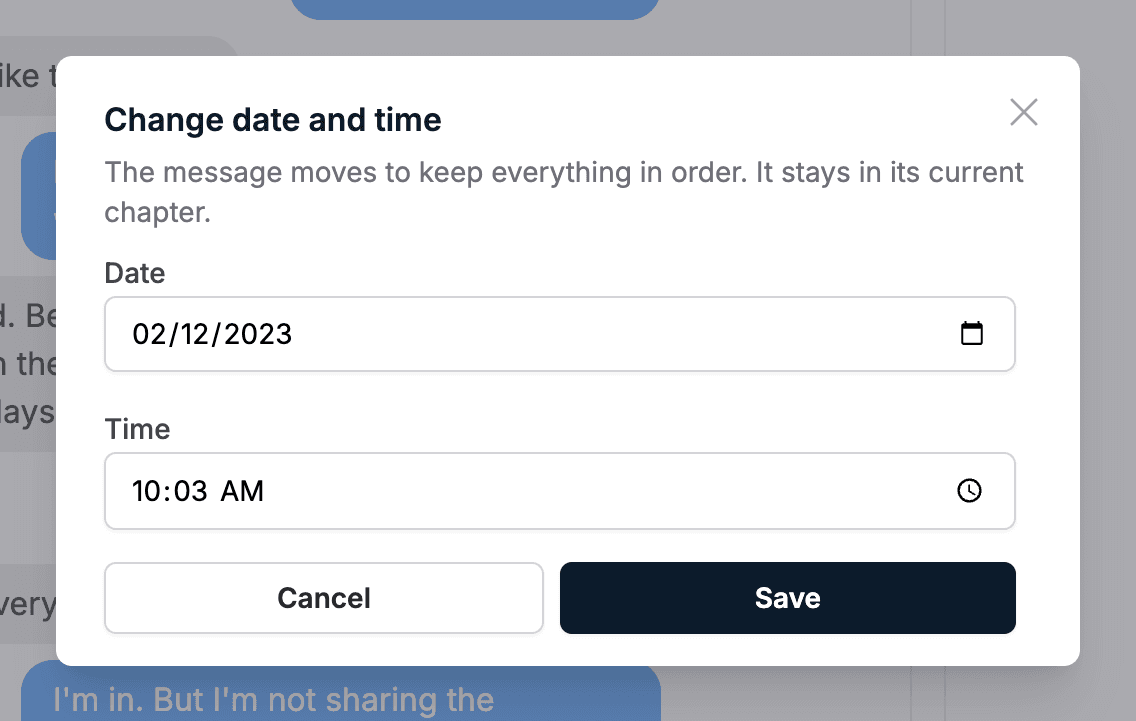
Pick the new date and time in the small window that opens.
- 3
Click "Save". The message moves to its new spot so the conversation stays in order.
Note: A message keeps its chapter when you retime it. To move a message into a different chapter, use cut and paste instead.